
Step 1: Access the TopBuddy Dashboard
In your WordPress dashboard, navigate to Settings > TopBuddy. You’ll see the TopBuddy dashboard with a list of all your notification bars (if you have any already created).
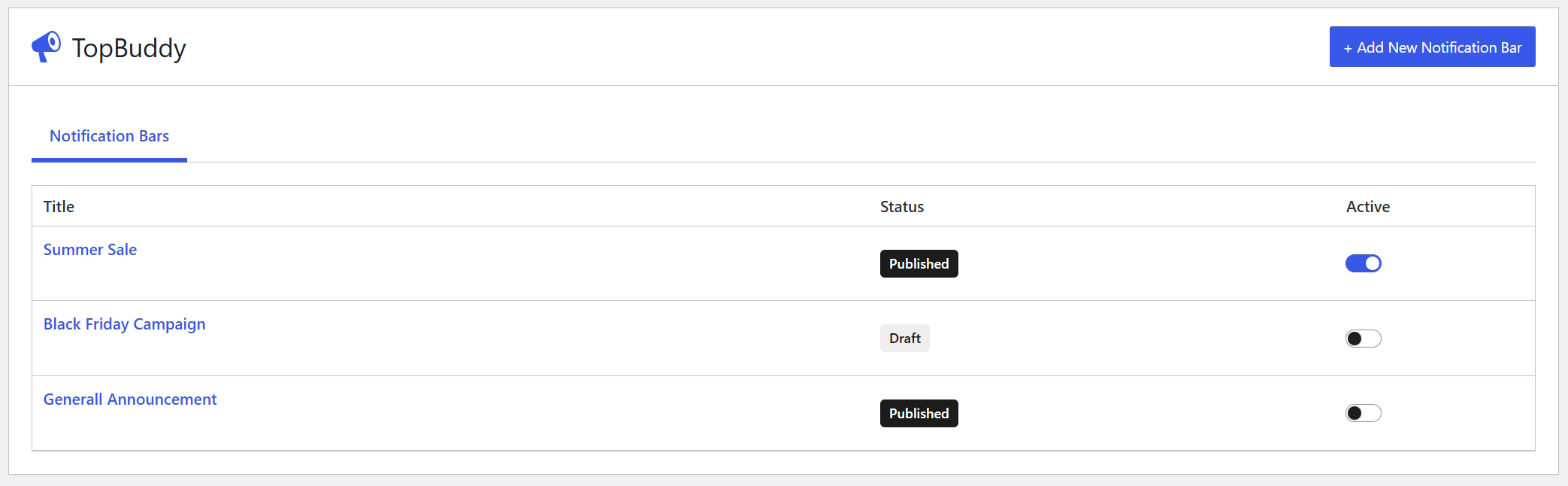
Step 2: Click “Add New Notification Bar”
In the top right of the dashboard, click the + Add New Notification Bar button. This opens the WordPress post editor where you can build your bar.
Step 3: Give Your Bar a Name
At the top of the editor, enter a title for your notification bar. Use a descriptive name like “Summer Sale Banner” or “Email Signup Promo” so you can easily find it later.
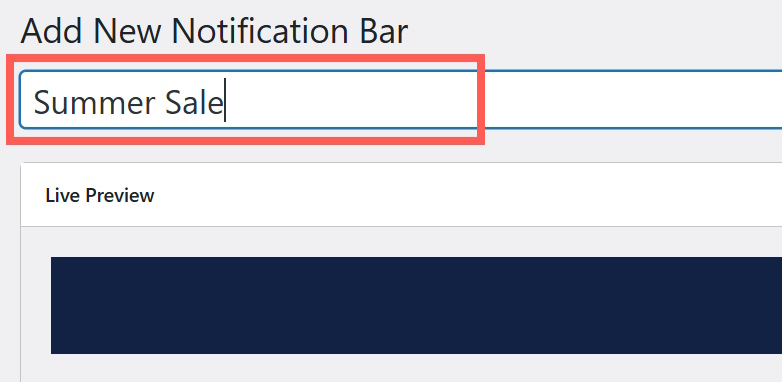
Step 4: Build Your Bar with Elements
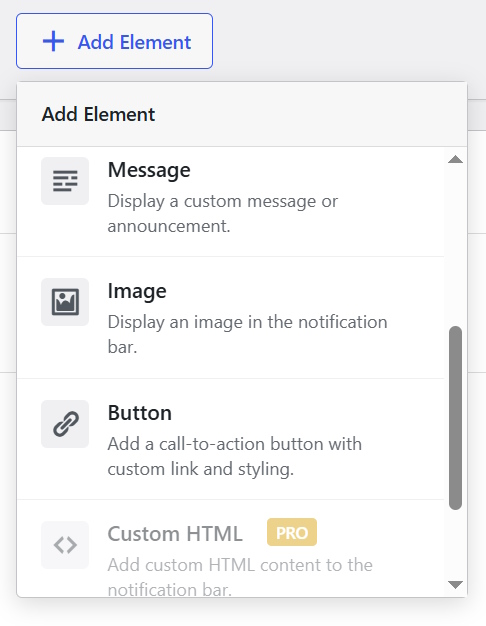
Below the title, you’ll see the visual builder. TopBuddy provides several elements to choose from, like Title, Message, Icon, Image, etc.
Click Add Element to add elements. Drag them to arrange how you want them to appear. The preview shows in real time how your bar will look.
The available settings and styling options for each element are available when you click a specific element inside the preview.
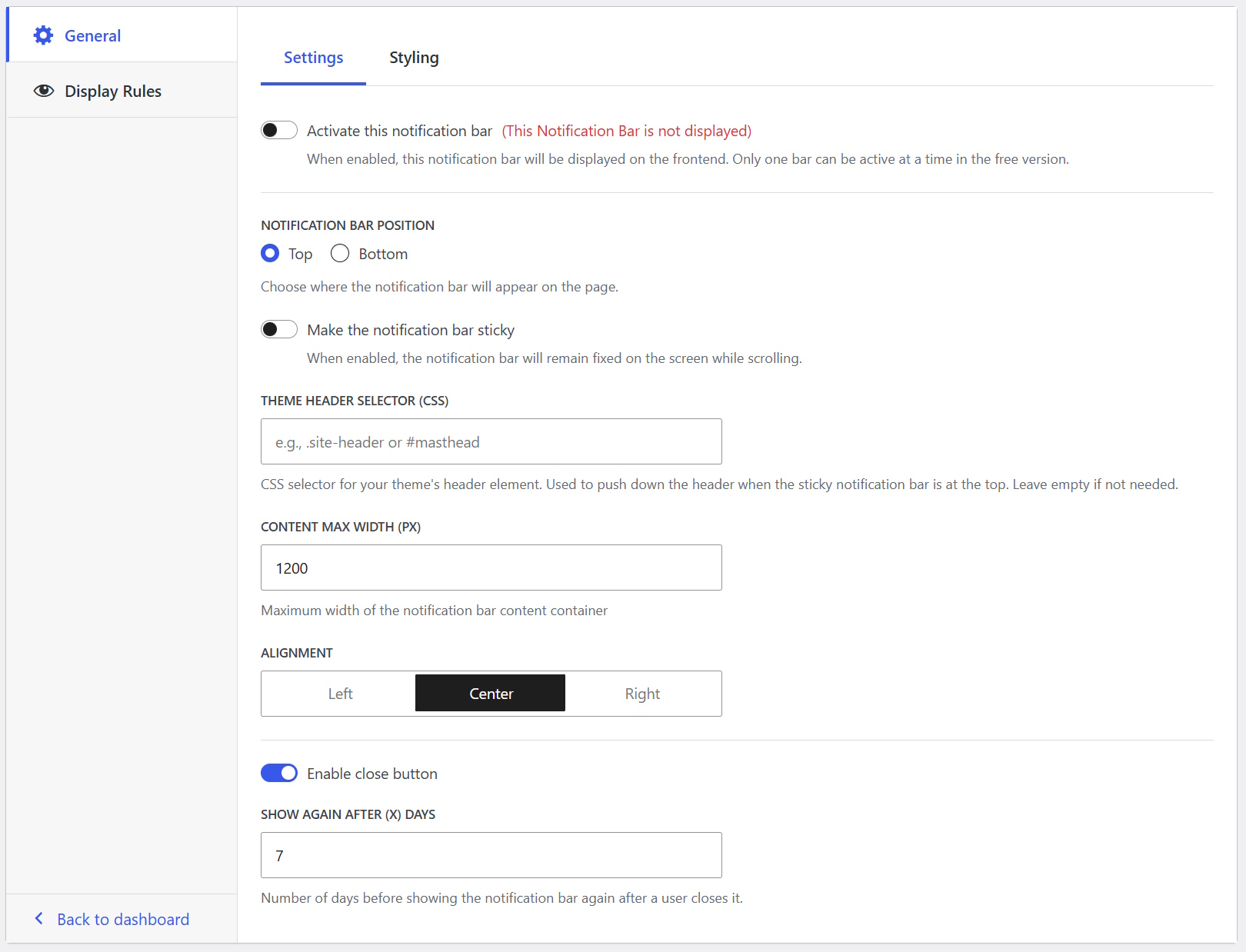
Step 5: Customize Your Bar Settings
Important: Make sure to also activate your bar from here, otherwise it will not be displayed.
Here you can change various settings like the position, sticky mode, enable or disable the close button. etc. You can also style your notification bar here (options for individual elements are available by clicking each element from the preview area).
Step 6: Set Display Rules (optional)
This step is optional and you should only use it if you don’t want to display the notification bar across your whole website. For example, you could show a discount bar only to new visitors on product pages, or a member-only announcement to logged-in users.
You can control where your bar appears:
- User Login Status – Show to all visitors, logged-in users, or guests only;
- Display Location – Show everywhere, on specific pages, or exclude certain pages;
- User Roles – Limit to certain user types.
Step 7: save and activate your bar
Click the Publish or Update button to save your notification bar.
Use the Activate toggle to make sure your notification bar is active and displayed on your WordPress website.
